All the music streaming services have raised their subscription prices in recent years.
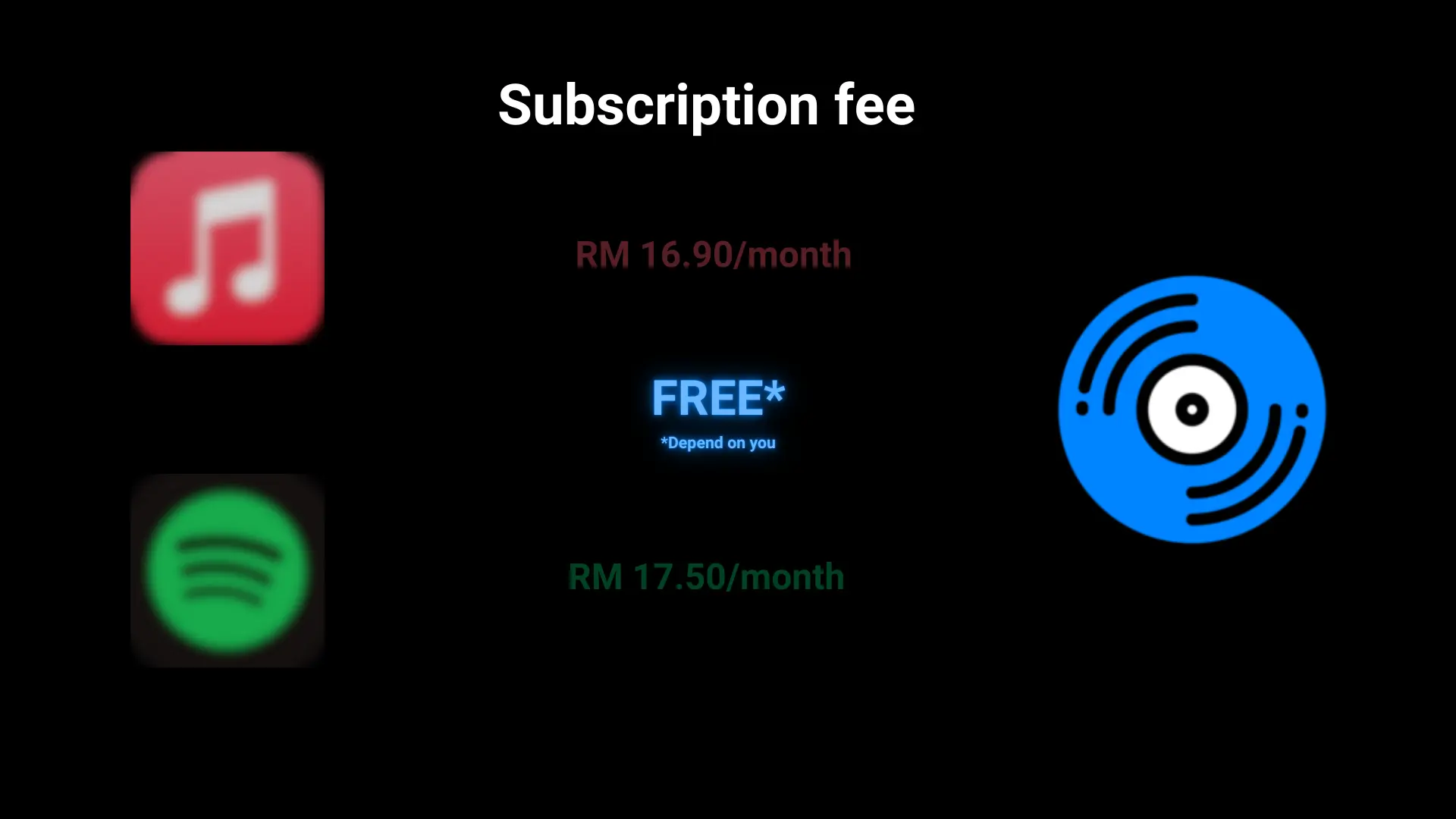
Let’s just talk about Spotify. Over the past two years, Spotify has increased its Premium subscription prices twice: once in 2023 and again in 2025. The individual Premium plan went from RM 14.9 to RM 15.9 in 2023 and from RM 15.9 to RM 17.5 in 2025. Analyst say Spotify will likely raise price Q1 2026.
I can’t stand the price in this economy. So, I stopped subscribing. I’m going to self-hosting my own “Spotify” music streaming service.
To be honest, my self-hosted setup is not perfect. You’ll see that throughout the rest of it. I’m open to suggestions or recommendations, so feel free to leave them in the comments.
Install Navidrome
To serve the music files, I need software that works as a server. I decided to use Navidrome. It has all the basic functions and is easy to use.
I have a home server running on Proxmox. I will use the Proxmox VE Helper Scripts to install Navidrome. These scripts make the process very simple.
Let me starting installing it:
- Get the command from the Proxmox VE Helper Scripts’ website.
- Validate the script. Copy and paste the script in browser to read. I ask ChatGPT to explain it and the explanation looked fine.
- Copy and paste the command into the Proxmox shell on my home server.
- I pick the default settings and select the hard disk where the container template will be stored.
- The script handles the rest.
After that, the script ask whether to install File Browser as an add-on. I skip it, because I’m not a fan of the UI and the project is currently in maintenance-only mode, focusing mostly on bug fixes and security patches. I will install file browser Quantum later.
Configure Navidrome LXC
The Navidrome container need a small tweaks to work smoother: make IP Address static, mount point for music storage and point Navidrome to the music storage.
Static IP Address
To make the reachable IP address for Navidrome permanent. I will assign the current IP address as static in container so it doesn’t change randomly.
- Select the Navidrome container.
- In Network, select the the first and only network.
- Change IPv4 to static, IPv4 set as current reachable IP address and Gateway as the home router’s address commonly as
192.168.1.1. - Click OK.
Mount Point
I also mount 20 GB from my NAS(it’s actually my 2 TB mirrored hard drives) to the container for music storage.
- Go to Resources.
- Select Add → Mount Point.
- In the popup, set the storage to NAS, Path to
/mnt/nasand disk size to20. - Click Create.
Point Music Storage in Navidrome Config File.
After creating the 20 GB mount point, I need to update the Navidrome config file.
- Go to Navidrome container console.
- Enter
nano /etc/navidrome/navidrome.toml. - Add/edit MusicFolder to
/mnt/nas/music. CTRL + Sto save andCTRL + Xto exit.
Last step, restart the container.
Install Add-on: File Browser Quantum
Let me get back to install the File Browser Quantum:
- Get the command from Proxmox VE Helper Scripts’ website.
- Validate the script. Copy and paste the script in browser to read.
- Copy and paste the command in the Navidrome container console.
- I leave the port as default.
- Enter
yto install File Browser Quantum. - Enter
Yto use “No Authentication”. I think it’s fine since it’s only music file. - The script will handle the rest.
Log in to File Browser Quantum to check.
Test and Create an Admin Account
Now, log on to Navidrome using the IP address, create an admin account and log in.
Navidrome is up and running, but the library is empty.
The Problem #1
The first problem I face is the music itself. I don’t have any music collection. I never bought music from iTunes or CDs. Don’t judge me, I growing up in the content streaming age.
When I looked into the used/pre-owned CD market, the prices are actually quite reasonable, and digital music stores like iTunes, 7digital and Gobuz also offer good prices from time to time.
The good thing about buying physical media or making a one-time digital purchase is that you only pay once. It fits my listening habits because I don’t jump from album to album quickly. It’s now December 2025 and I’m still stuck on “Brat”.
My plan is to slowly buy my favourite artists’ albums, either on CD or from digital music stores when they have good discounts, and build my music library. At the same time, I will use the free-tier YouTube Music to fill the gaps.
Get Music
For now, I bought three albums: One from the iTunes Store and two from the used market.
The first purchase was the Brat remix album, Brat and it’s completely different but also still brat, by Charli XCX for 18 ringgit (about USD 4.22). I think it’s the best deal. This remix album includes the original Brat deluxe version, 18 songs, and an additional 17 remix tracks. Charli XCX ’s remixes are almost like new songs. I love the original album, the remixes are great, and I got 35 songs for 18 ringgit.
The second and third purchases were Planet Pit (Deluxe Version) by Pitbull for 8.5 ringgit, and Talk That Talk by Rihanna for 9 ringgit— 17.5 ringgit in total (about USD 4.26). These albums bring back a lot of memories.
The Brat remix album can be downloaded directly from iTunes and placed into the Navidrome music folder.
The two CDs require extra work.
Ripping CDs
I turned the storeroom upside down trying to find an optical drive. I ended up finding three.
Around ten years ago, almost all laptops came with an optical drive, but not everyone needed it. So, I swapped my family’s laptop optical drives with SSD caddies for extra storage. That’s where these drives came from.
At first, I thought I could use a USB-to-SATA adapter, but it turns out it’s not compatible. I needed a USB-to-slimline-SATA adapter.
I will use iTunes to rip the CDs, for convenience. I don’t need to install anything else.
First, I rip the CD into ALAC (Apple Lossless Audio Codec) for backup. Then, I convert the ALAC files into AAC. ALAC is not widely supported, mostly Apple devices support it. I also don’t care that much about lossless audio. AAC is good enough for me and more compatible.
Next, I drag all the converted files into the Navidrome music folder. Log into Navidrome and scan for new files. Play some music to test.
Navidrome Client
The web interface I logged into earlier also works as a client. It’s good enough for desktop or laptop use.
On mobile, I use an iPhone and mainly use Amperfy. It works well for me. It supports Apple CarPlay, offline saving, and Siri (although Siri doesn’t work very well).
Another app called Arpeggi is also quite good, but it’s still in beta testing.
The Problem #2
Now, I have another issue. Navidrome only works smoothly on my home network. When I’m outside or on 4G, the service becomes unreachable.
There are several ways to make a local service available on the internet. For me, I’m only comfortable using Cloudflare Tunnel. It’s the only method I know well.
I use it for my self-hosted Google Photos alternative, Immich. When I access it from the web, Cloudflare performs email authentication first, then forwards me to the Immich login page. I also configured a bypass policy that injects two custom headers for the Immich mobile app. But this only works if the app supports it. Immich supports it, but Amperfy and Arpeggi do not.
Another option is using Cloudflare Warp (1.1.1.1) VPN to connect back to my home services. But it’s not ideal for me because my mobile plan includes free data for social media apps like TikTok, Facebook, and Instagram. If I use a VPN, the telco cannot detect the traffic type. All data goes through Cloudflare, and I lose the free allocation.
So, my music streaming setup is not fully “streaming”. On the local network, yes, it streams. Outside the home network, I mainly rely on offline-saved songs.
Final words
This is how I run my self-hosted music streaming service. It’s not perfect; I need to spend money on music, and it’s not fully streaming.
Maybe you can share how you run your music streaming setup in the comments so I can learn from you.